> For the complete documentation index, see [llms.txt](https://oido.gitbook.io/hilfe/llms.txt). Markdown versions of documentation pages are available by appending `.md` to page URLs; this page is available as [Markdown](https://oido.gitbook.io/hilfe/help/settings/printers/printer-setup.md).
# Printer setup
{% hint style="info" %}
All Star™CloudPrint printers are supported by the OIDO system.
{% endhint %}
### Two steps to connect your printer to your OIDO online store
1. Register your printer with the manufacturer's CloudPRNT
2. Set up your printer with the OIDO online shop
### Step 1: Register your printer with the manufacturer's CloudPRNT
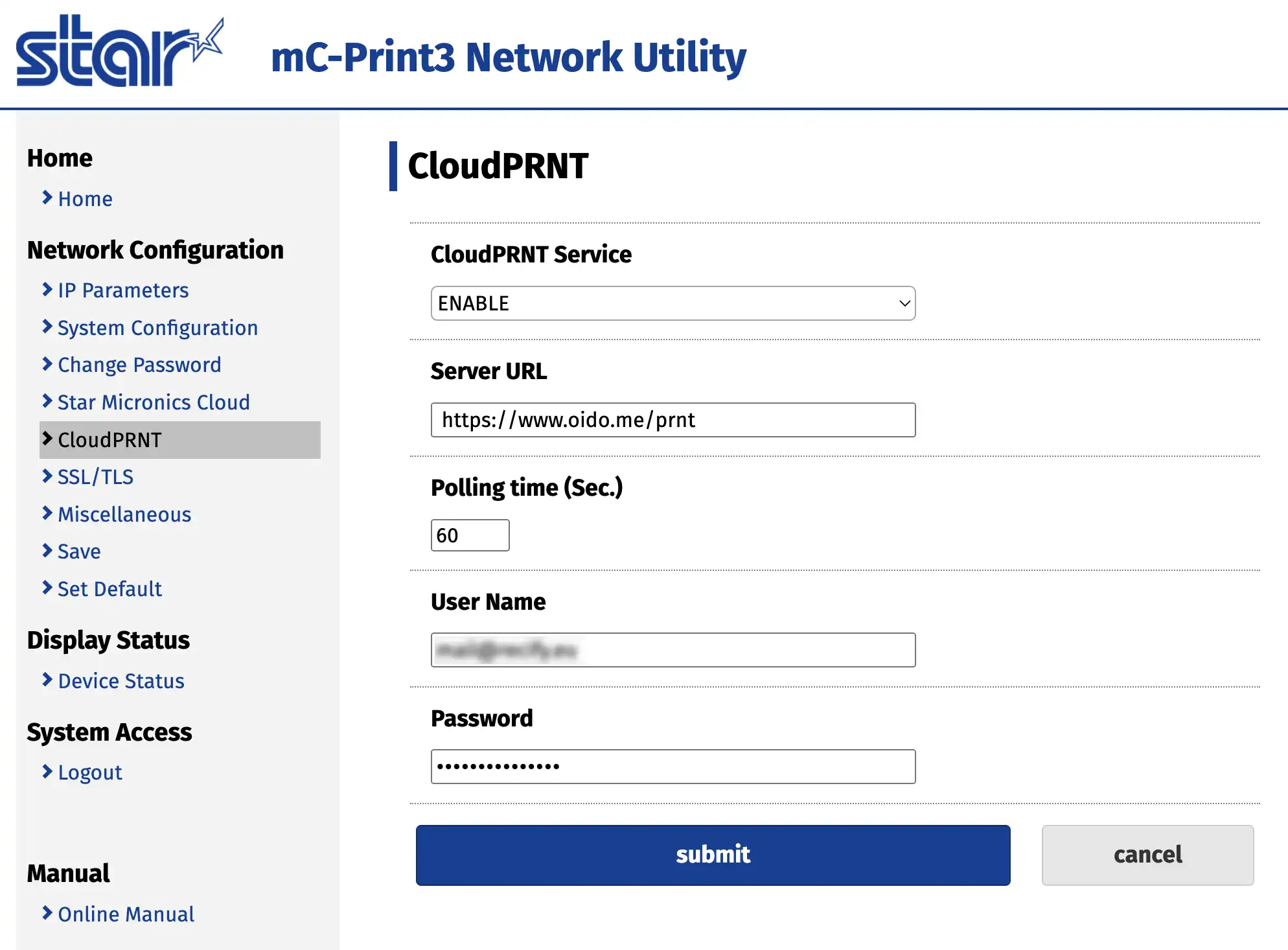
* Connect your printer to the internet – using a Ethernet-cable or your Wi-Fi, depending on the printer.
* Go to the cloud print settings in your printer menu.
* ENABLE CloudPRNT
* Server URL:
* Polling time: 60 seconds
* User Name: leave blank
* Password: leave blank
* Save and restart the printer.
{% hint style="info" %}
Here you will find the information from the printer manufacturer:
{% endhint %}
### Step 2: Set up the printer at the OIDO online shop
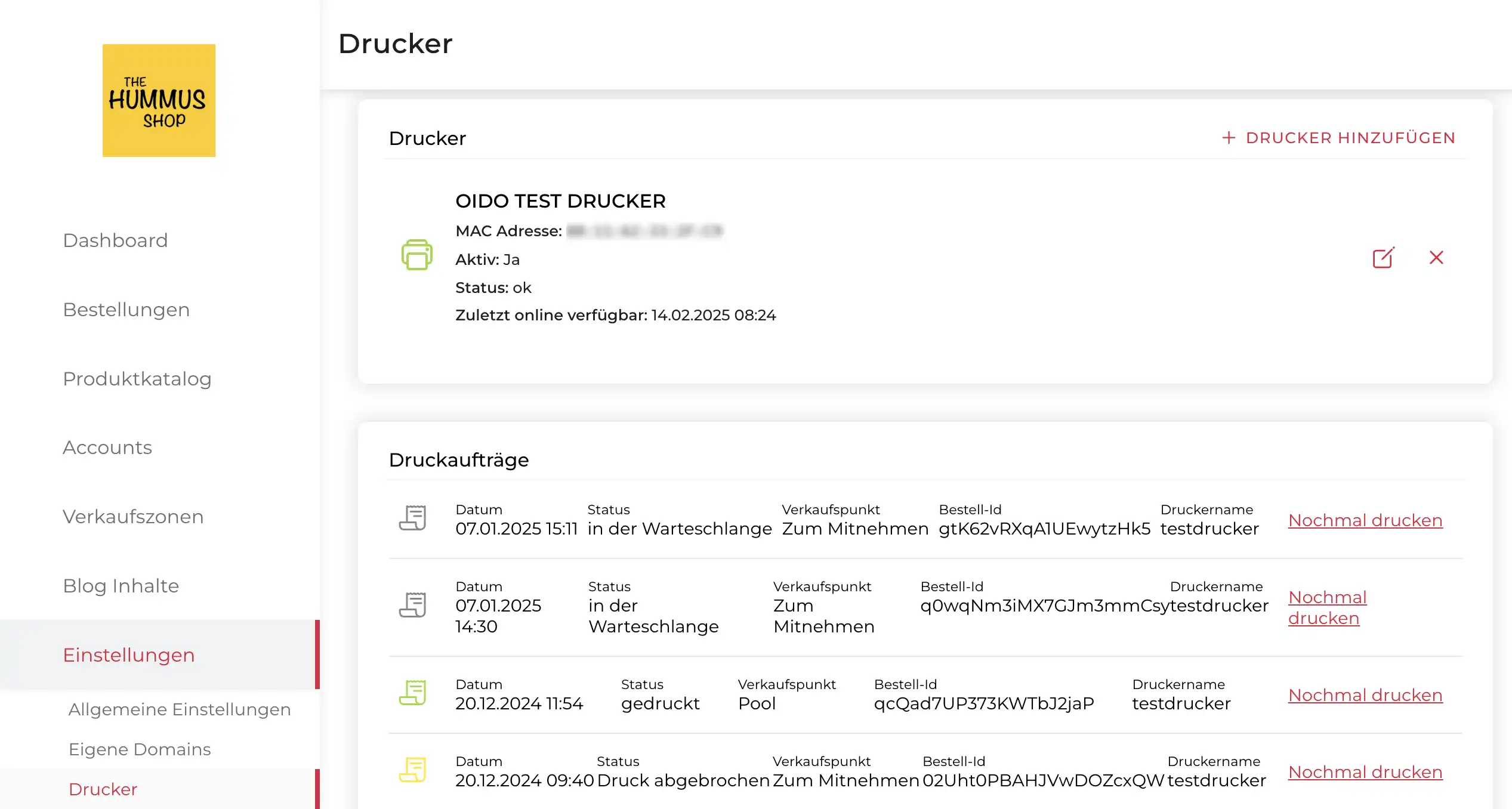
* Enter a printer name (any name)
* Enter the MAC address that is printed on the self-test of your printer.
* Enter the paper width
* Select the production site whose order components you want to print there
* Activate printer
When the icon turns green, your printer is accessible to OIDO and ready to go.
{% hint style="warning" %}
The print queue deletes all entries older than 24 hours to save resources.
{% endhint %}
{% hint style="success" %}
You can create as many printers as you like and assign the content to be printed to the respective production sites.
{% endhint %}
### Compatible printers with the OIDO online shop (as of 2024)
TSP143IV UE GY E+U (#39473090)\
TSP143IV-UE SK GY E+U (#39473390)\
MCP31L WT E+U (#39651090)\
MCP31L BK E+U (#39651190)\
MCP31LB WT E+U (#39651290)\
MCP31LB BK E+U (#39651390)\
MCP30 WT E+U (#39654090)\
MCP30 BK E+U (#9654190)\
MCL32CI BK E+U (#39658190)
***
[‹ Return to the OIDO website](https://www.oido.me/en)