The product name, price, VAT and category are required to display the products. Photos, variants and add-ons make it easy to use.
Add product
Add a new product using the ‘+Add product’ button at the top right
Search for a product or category
Hide an entire category by clicking on the eye icon on the right-hand side of the grey bar
Hide a subcategory by clicking on the red eye icon
Move products by touching and dragging the line icon to the left of the product – both within a category or subcategory and across categories.
Edit products by clicking on the edit icon
Delete products by clicking on the X icon
Enter the name of the product or dish.
Enter product details such as ingredients, allergens and quantities here.
The longer the description, the more confusing it will be for the customer when viewed on their mobile phone.
This dialogue box is used to define the behaviour and properties of the product.
There are two product types: the default setting and combined products. are suitable for creating menus with options.
Leave the default setting on the Simple type for a standard product. In most cases, the simple product is the appropriate solution.
You can add product variations to simple products. Entering price additions, both positive and negative ±, is optional.
Combined products create a selection menu, such as a lunch menu consisting of several courses, from which the customer must choose one option for each course.
In the order view, each dish ordered is assigned the subtitle ‘Menu’ so that the production facility can display the difference between ‘menu item’ and ‘à la carte’.
Enter the price including the applicable VAT.
Select the VAT rate corresponding to the product.
Assign the product to a here. Select the appropriate category from the drop-down menu. E.g. for the product coffee, select the category beverages.
OIDO offers courses for use in the catering industry. If you want to use courses, you can assign the here. For example, select the course ‘Beverages’ for the product ‘Coffee’.
The production location function makes it easy to implement marketplaces.
Assign the product to a production location here so that the associated products can be displayed at this production location.
This also forwards the to the associated production facility.
Example: Food trucks: You have three food trucks at an event, e.g. vegan, Italian and burgers. With OIDO, three food trucks share a common menu.
Customers can order from all trucks and pay together.
By selecting the production location, only the part of the order that belongs to the respective truck is delivered.
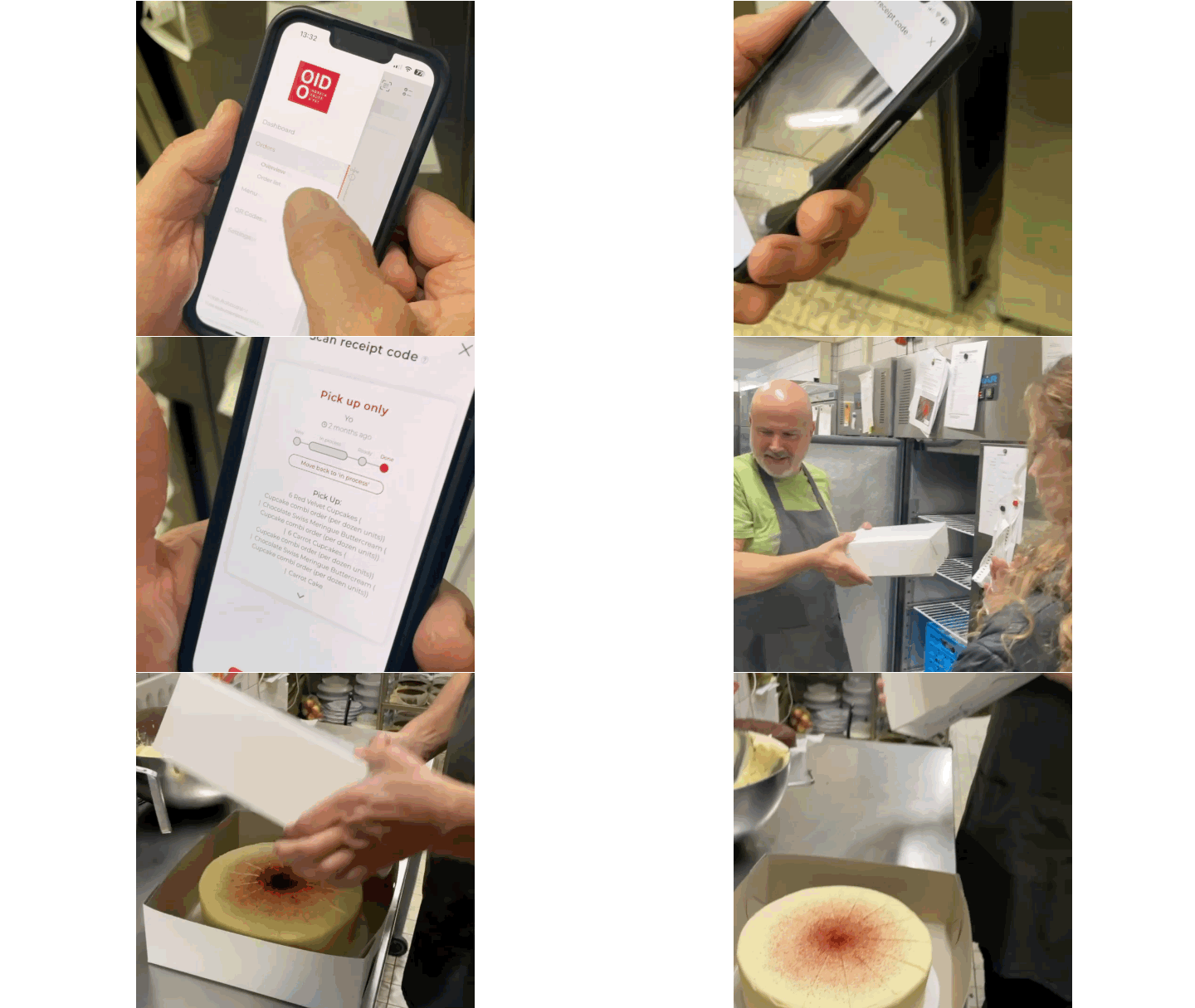
Example: Bakery: You offer cakes and croissants. The cakes are made in a second production facility and stored in cold rooms. With the production location function, you can route orders to the correct location.
Production time
Entering the production time is optional. Required for the delivery function:
Specifying the production time in the menu
Calculating the earliest possible pick-up time for ClickCollect or takeaway sales
The following information is also important for calculating the pick-up time:
Limited to opening hours You must tick this box if the production time may only be calculated during opening hours.
E.g. If your cake has to remain in the freezer for 24 hours after production, you should not tick the box for limiting to opening hours.
Pure production time is divisible: you must tick this box if the production time can be spread over the opening hours.
For example, if the production process can continue during the lunch break.
Product weight
Entering the product weight is optional. The product weight including packaging is used to calculate delivery costs.
Add photo
You can add one photo to each product.
A square image file in jpg or png format between 720 and 1240 px in length gives the best results.
Larger files unnecessarily increase loading times for your customers.
The photo is displayed small in the product catalogue and can be scaled to full screen width by clicking on it.
It is better to refrain from using a photo that does not do justice to the quality of your product.
Search terms
Your customer can use the optional search terms to filter the product display on their smartphone. These should be product characteristics such as ‘spicy’ or ‘vegetarian’.
Add your to the product.
You can use both text and emojis for the search terms.
Avoid parallel navigation with search terms such as ‘drinks’ or ‘hamburgers’. This would only confuse users of your product catalogue.
Add a new product with the “+ Add product” button at the top right
Hide an entire category by clicking on the eye icon on the right in the gray bar
Hide a sub-category (underlined) by clicking on the eye icon to the left of the text
Ordnen Sie hier das Produkt einem Produktionsort zu, um die zugehörigen Produkte an diesem Produktionsort anzeigen zu können.
Damit leiten sie auch den an die zugehörige Produktionsstätte weiter.
Beispiel Food Trucks: Sie haben bei einer Veranstaltung 3 Food Trucks, z.B. Vegan, Italienisch und Burger. Mit OIDO teilen sich drei Food Trucks eine gemeinsame Speisekarte.
der Kunde kann bei allen Trucks bestellen und gemeinsam bezahlen
durch die Produktionsortauswahl kommt nur der Teil der Bestellung bei dem jeweiligen Truck an.
Beispiel Bäckerei: Sie haben Torten und Croissants im Angebot. Die Torten werden in einer zweiten Produktionsstätte angefertigt und in Kühlkammern gelagert. Mit der Produktionsort-Funktion können sie die Bestellungen an den jeweils richtigen Ort leiten.
Die Eingabe der Produktionszeit ist optional. Für die Liefer-Funktion wird benötigt:
Die Angabe der Produktionszeit in der Speisekarte
Berechnung des frühestmöglichen Abholzeitpunkts für ClickCollect oder Ausser Haus Verkauf
Opitonale Eingabe von Produktionszeit.
Für die Berechnung des Abholzeitpunkts sind noch folgende Angaben wichtig:
Begrenzt auf die Öffnungszeiten müssen sie ankreuzen, wenn die Herstellungszeit nur während der Öffnungszeiten berechnet werden darf.
z.B. Wenn Ihr Kuchen nach der Produktion noch 24 Stunden im Tiefkühler bleiben muss, dann sollten Sie die Begrenzung auf die Öffnungszeiten nicht ankreuzen.
Reine Herstellungszeit ist aufteilbar müssen Sie ankreuzen wenn die Herstellungszeit über die Öffnungszeit verteilt werden kann.
z.B. wenn der Herstellungsprozess während der Mittagspause weiterlaufen kann
Eingabe des Produktgewichts für die Lieferkostenberechnung
Die Eingabe des Produktgewichts ist optional. Das Produktgewicht mit seiner Verpackung dient der Lieferkostenberechnung.
Produktfoto hinzufügen oder wechseln.
Sie können je ein Foto zum Produkt hinzufügen.
Eine quadratische Bilddatei im Format jpg oder png zwischen 720 und 1240 px Seitenlänge liefert die besten Ergebnisse.
Grössere Dateien erhöhen unnötig die Ladezeiten für Ihre Kunden.
Das Foto wird klein im Produktkatalog angezeigt und kann durch Anklicken auf die volle Bildschirmbreite skaliert werden.
Produktfotos werden klein in der Listendarstellung und auf die volle Breite skaliert als Überleger angezeigt.
Verzichten Sie lieber auf ein Foto das der Qualität Ihres Produktes nicht gerecht wird.
Mit den optionalen Suchbegriffen kann Ihr Kunde die Produktanzeige auf seinem Smartphone filter. Dabei sollte es sich um Produkteingenschaften wie z.B. "scharf" oder "vegetarisch" handeln.
Fügen Sie dem Produkt Ihre zu.
Bei den Suchbegriffen können Sie sowohl Text als auch Emojis verwenden.
Vermeiden Sie eine parallele Navigation, durch Suchbegriffe wie "Getränke" oder "Hamburger". Dies würde die Nutzer Ihres Produktkatalogs nur verwirren.
Delete products by clicking on the X symbol
Enter the name of the product or dish.
Enter product details such as ingredients, allergens and quantities here.
Type Simple:
Select the Simple type for a standard product such as coffee.
Select Combined for a selection product such as a lunch menu consisting of several dishes to choose from.
Enter the price including the applicable VAT.
Select the VAT rate corresponding to the product.
Assign the product to a category here. Select the appropriate category from the drop-down menu. E.g. for the product Coffee the category Drinks.
Assign the product to a course or delivery here. For example, select the Drinks course for the product Coffee.
Assign a production location to this product to ensure that only orders containing items designated for that location will appear when the filter is applied accordingly.
A square image file in jpg or png format between 720 and 1240 px side length provides the best results.
The photo is displayed small in the product catalog and can be scaled to full screen width by clicking on it.
You can customize each product by adding optional extras or variations, which can include an additional charge, a discount (using a negative value), or no price change at all. This allows for greater flexibility in tailoring the product offering to your customers' preferences.
Optional: Add your previously defined search tags to the product.